
Built inside a Reno restaurantBuilt inside a working restaurant in Reno, Nevada
Know what to order before service, not after.
One walk through the kitchen each morning, on the phone already in your cook’s pocket. Ordering, receiving, waste and food cost follow from it.
A real app screen, with an example kitchen’s items.
- 30 days free, no card to start
- Walkthrough and counts work with no signal
- Start from a photo of your invoice — AI reads it, you check it
A day with Kitchen on Hand
From the walk-in to your food cost, without a spreadsheet.
Real screens from the app, using an example kitchen. This is what your team sees.
01Morning walkthrough
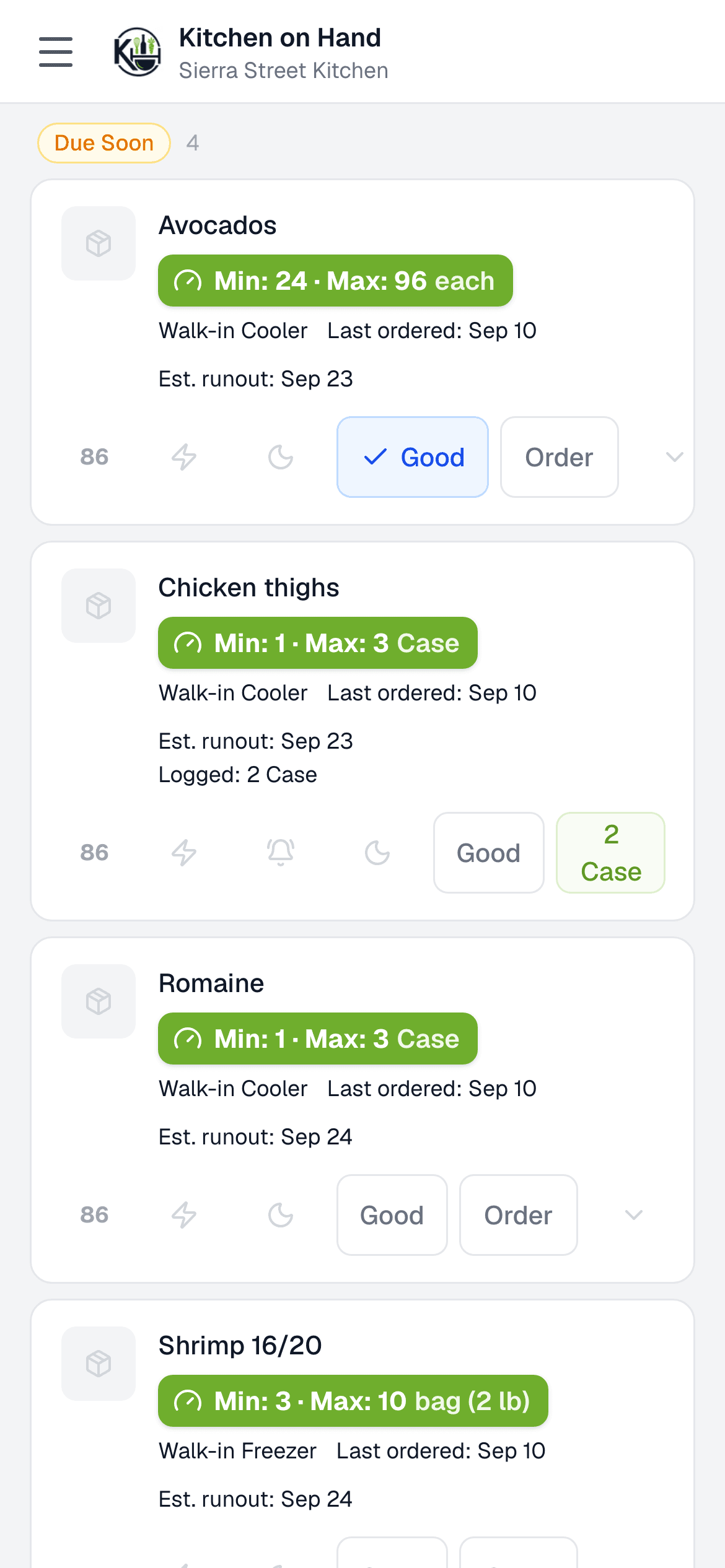
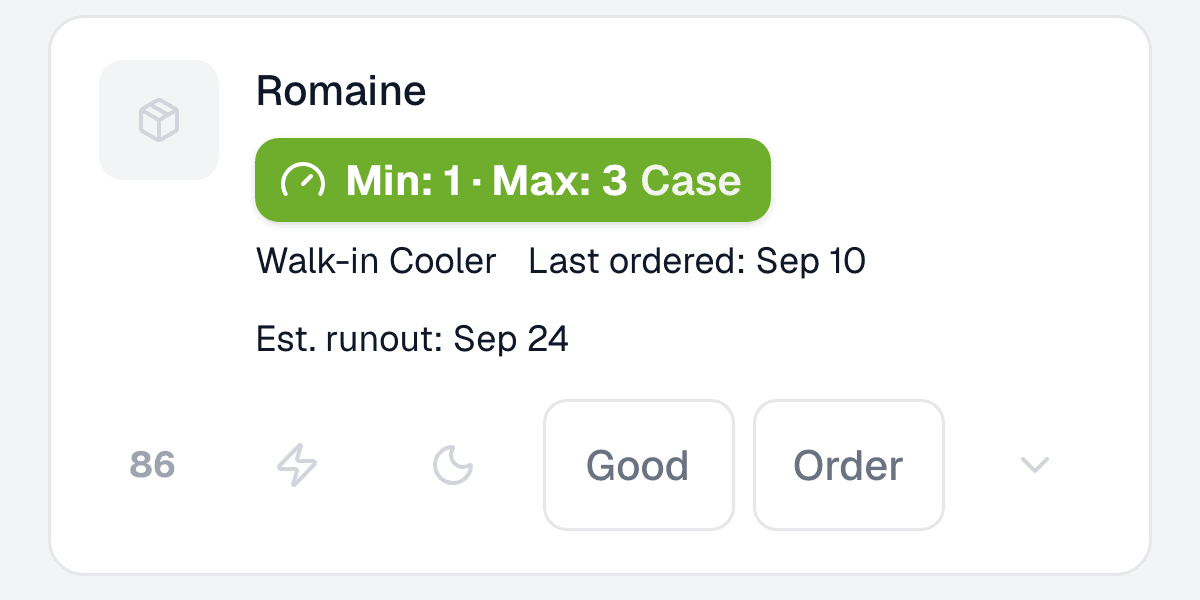
Walk the kitchen. Tap Good or Order.
Item Needs lists every item by location, in the order you walk it. One tap each. Items you’re likely to run out of first sort to the top, and anything flagged as an emergency sits above them. Open it before you go in and it keeps working with no signal in the walk-in — taps save on the phone and send when you’re back in signal.
02Ordering
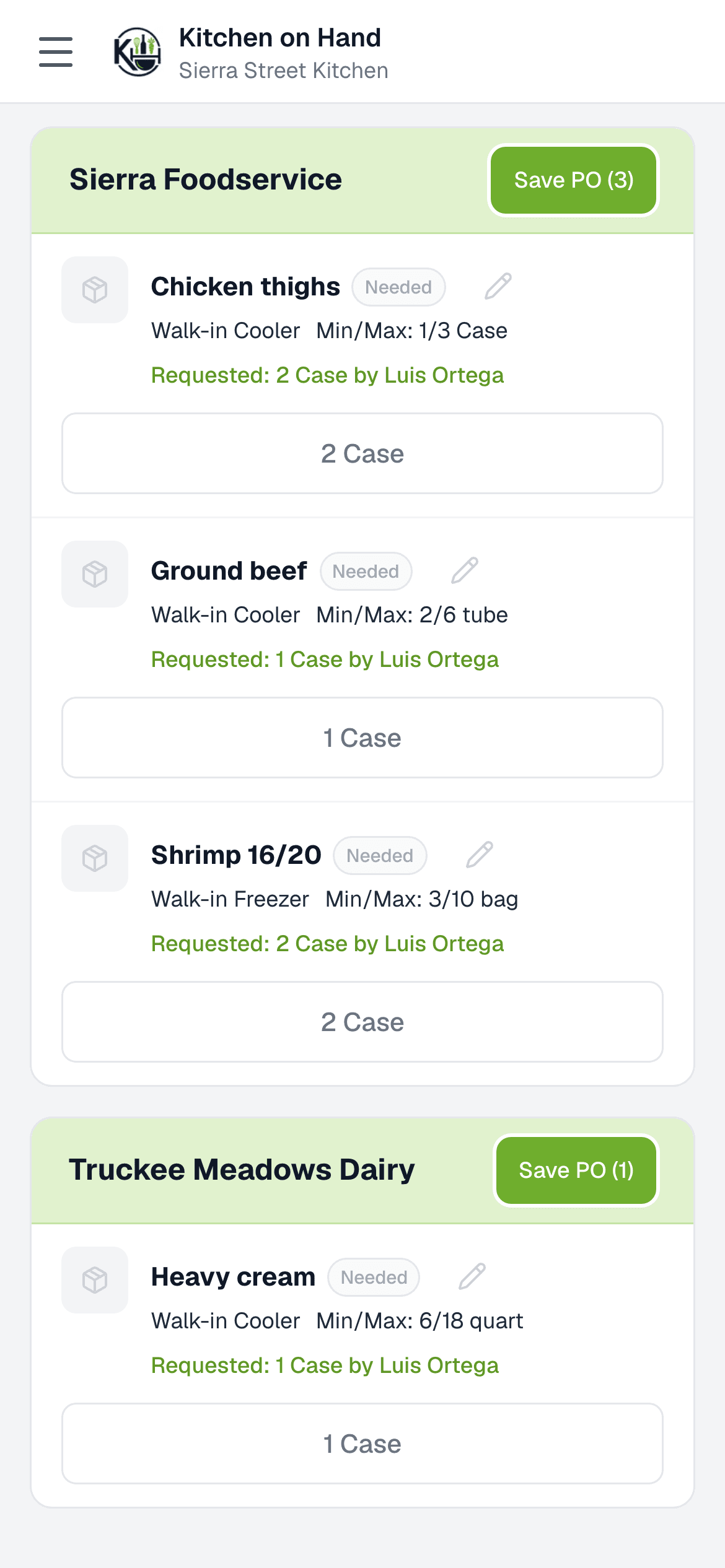
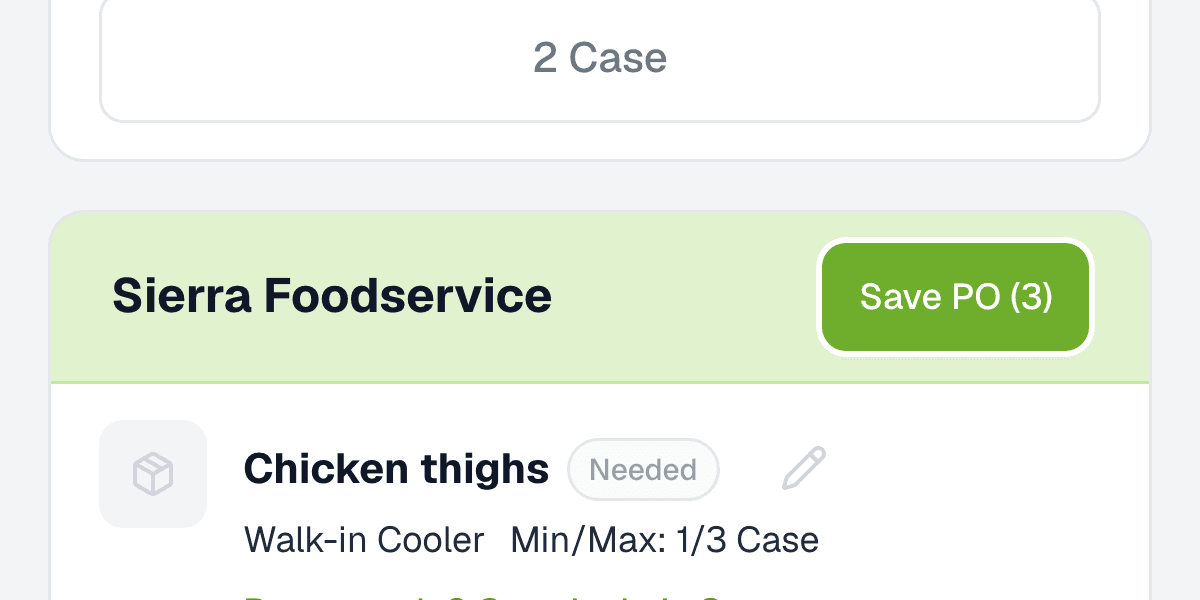
Your order list writes itself, by vendor.
Everything flagged on the walkthrough lands on Ready to Order, grouped by vendor, with a suggested quantity based on what you’ve ordered before. One tap saves the purchase order. Add anything else from your catalog, or a one-off item, then send it to the vendor by email, text or print.
03Receiving
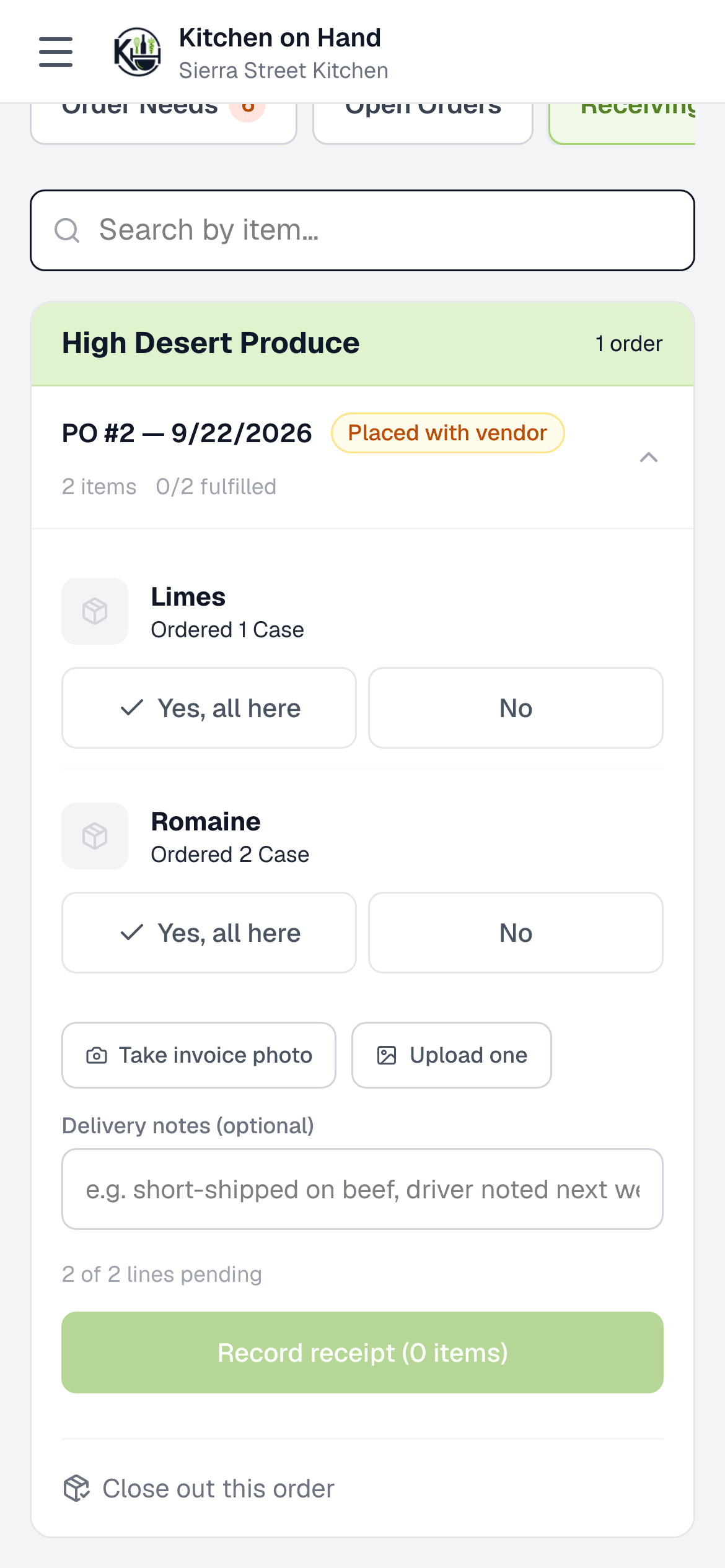
Check the truck in from the dock.
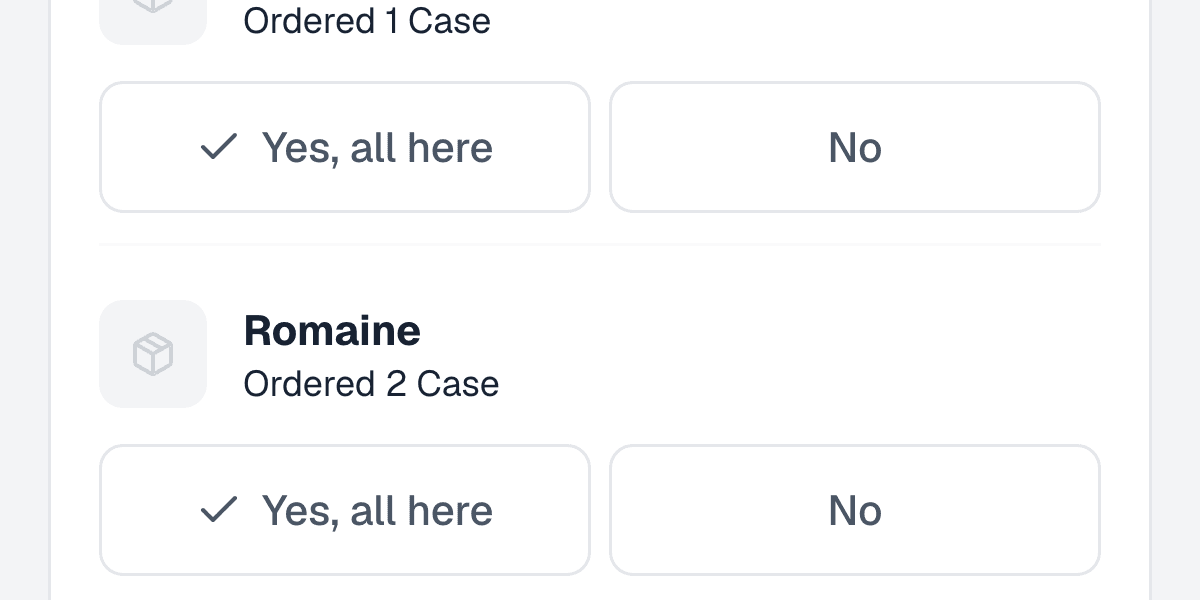
Tap “Yes, all here”, or mark what was short, wrong or rejected. Snap the invoice. The price you paid goes into purchase history, and the dashboard points out when an item’s price has gone up since last time.
04Waste
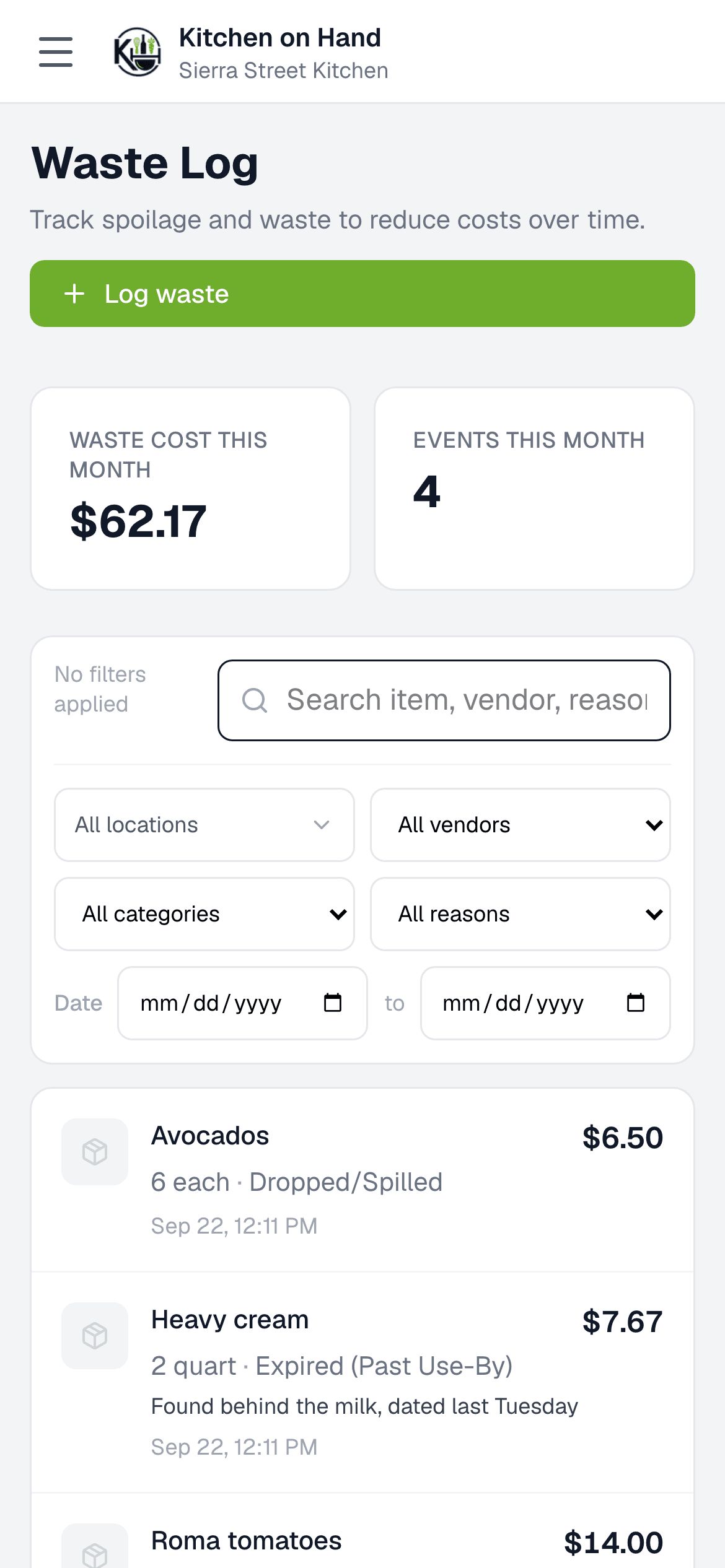
Log waste in a few taps. See it in dollars.
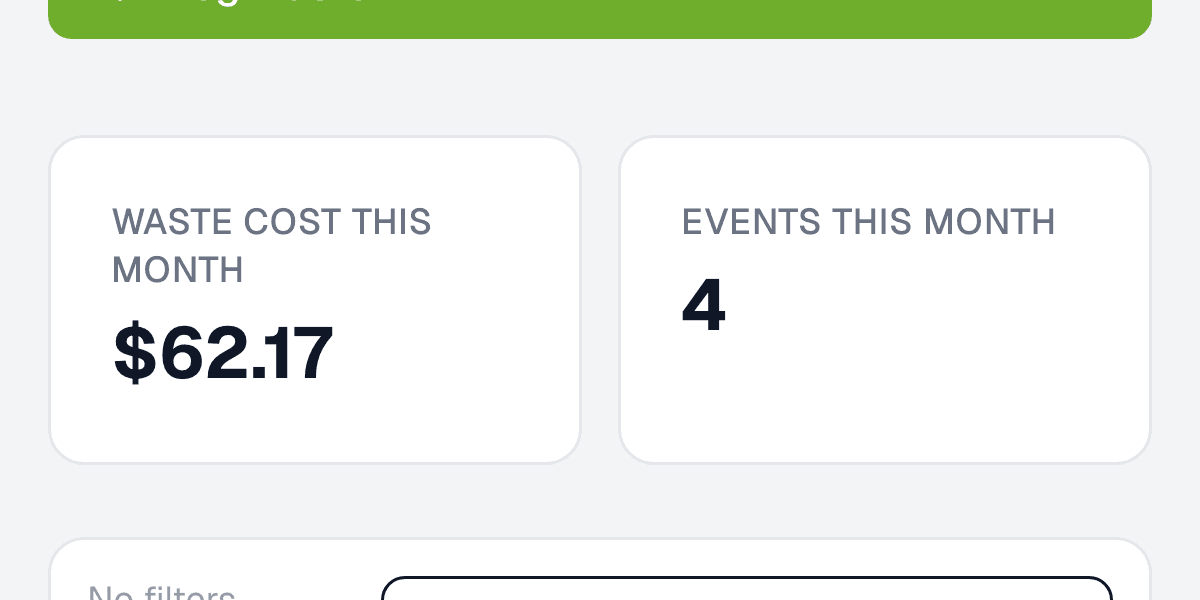
Item, amount, reason, done. Each entry is priced at the item’s current cost — the last price you recorded at receiving — so “we threw out a case of cilantro” shows up as dollars on the dashboard and in the summary we email you every Monday.
05Counts and food cost
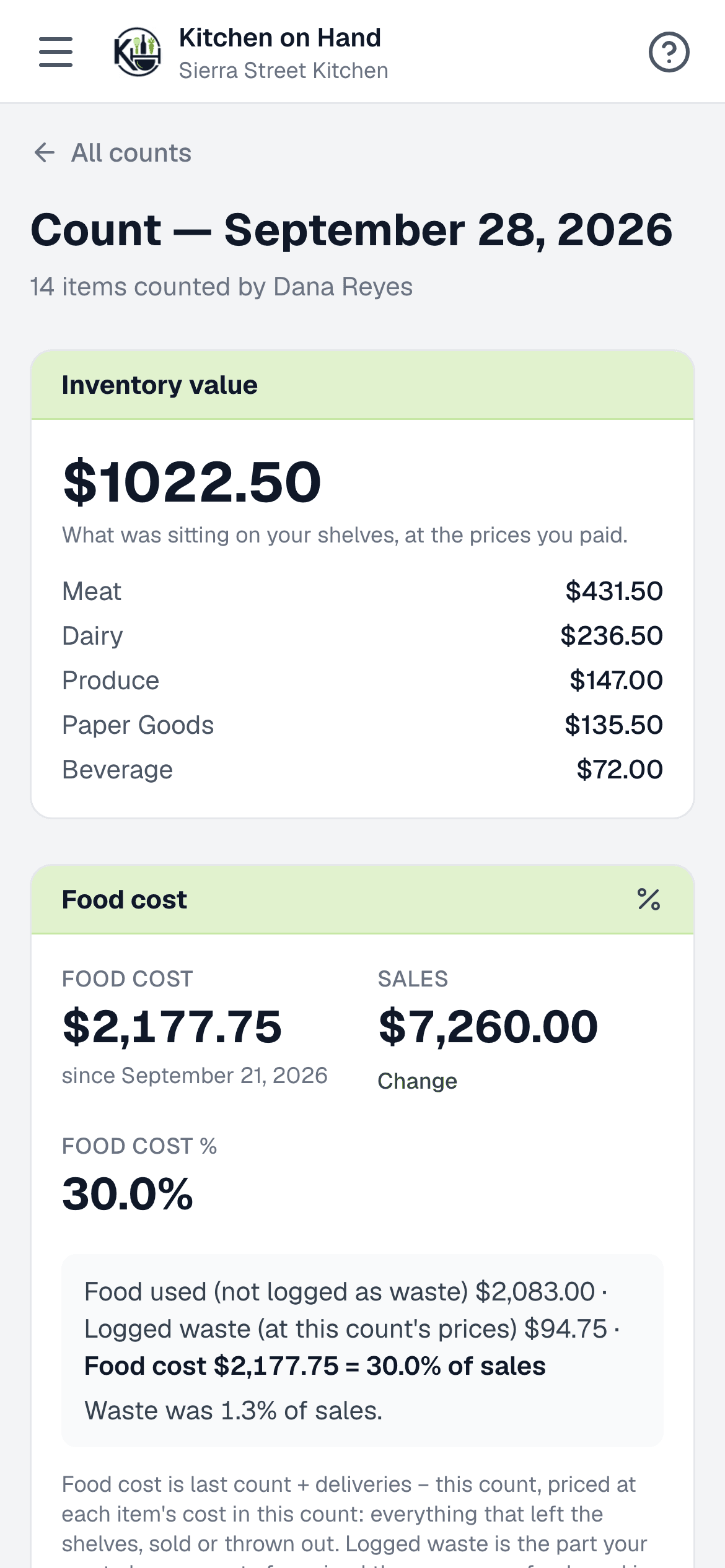
Count the shelves, get your food cost.
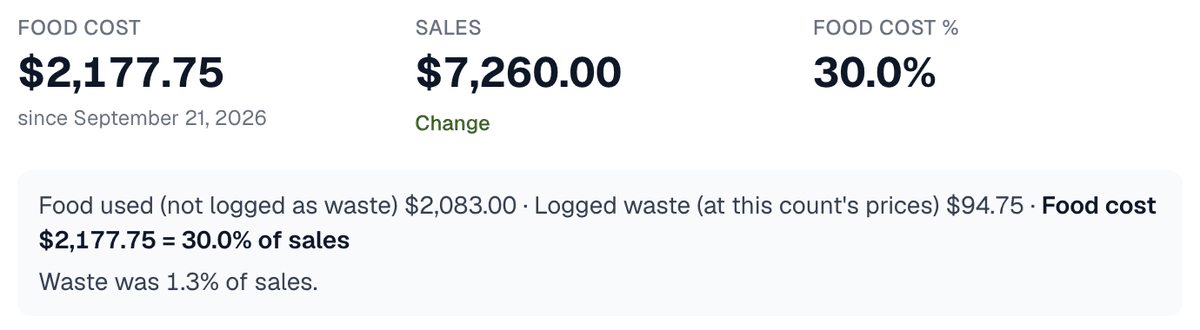
A count values what’s on the shelf at the prices you paid, works out what left the shelves since the last count — used or logged as waste — and, with your sales for the period, gives you a food-cost percentage. All from numbers you entered — nothing estimated for you.
06Recipes
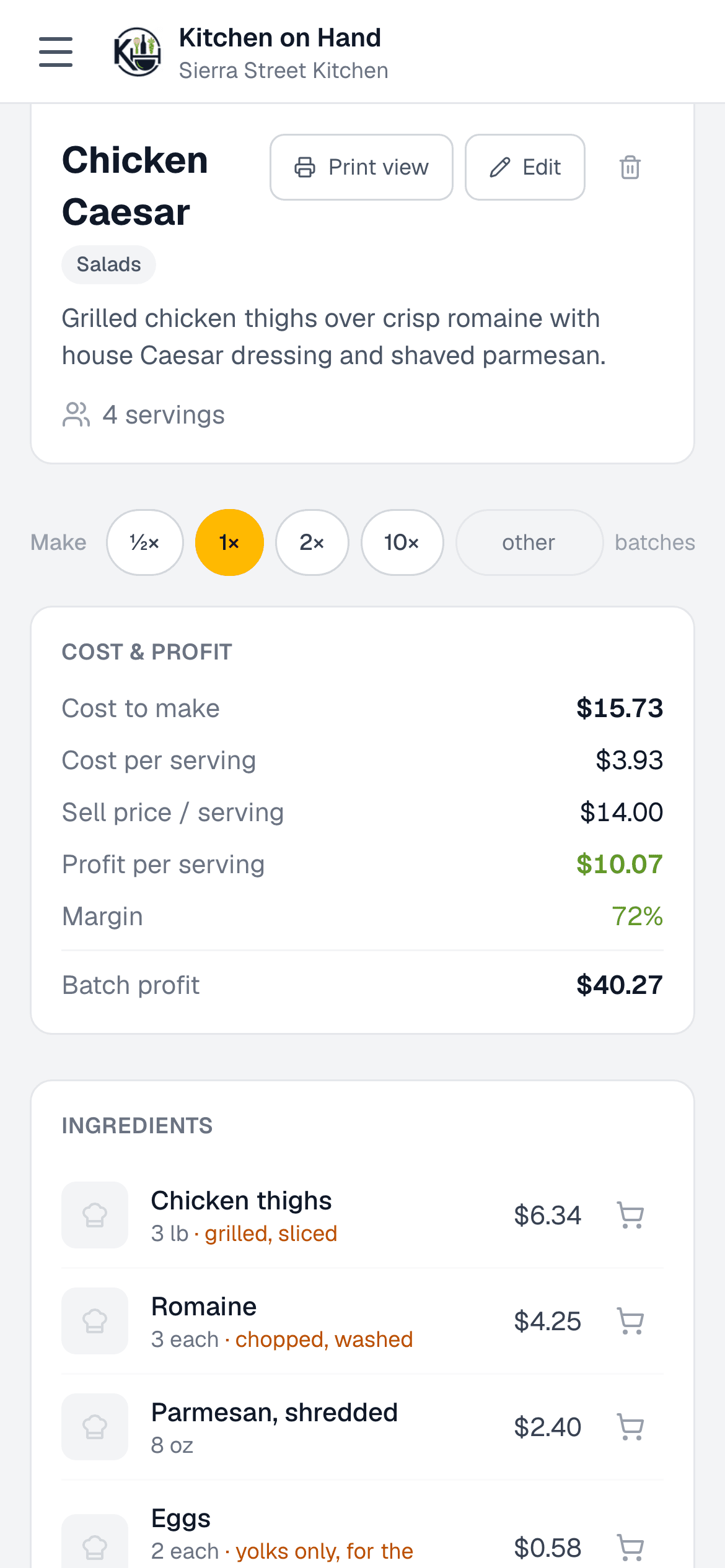
Know what every plate costs to make.
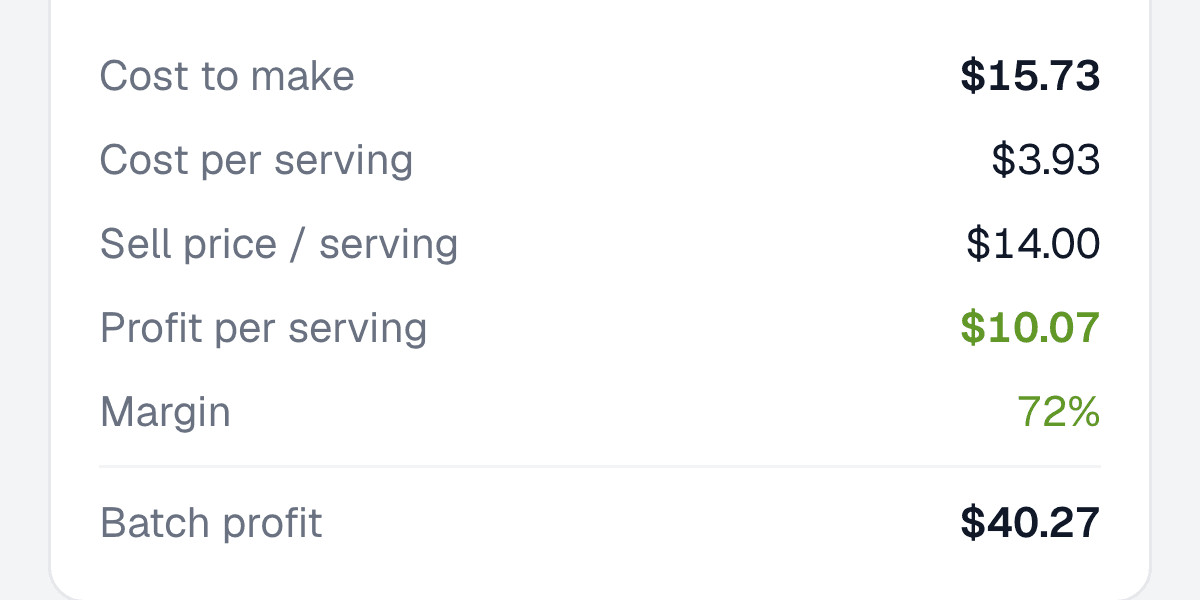
Recipes cost out from the ingredients you actually buy — by the case, the pound, the ounce or the bottle — and show an estimated cost and margin per serving. When an ingredient’s price goes up, the dishes it touches are called out on the dashboard.
Monday morning
What you see when you sit down with coffee.
The dashboard points at what changed: prices that went up since the last delivery, this month’s waste in dollars, and the dishes whose margin moved. Last week’s spend, waste and price jumps also arrive by email every Monday.
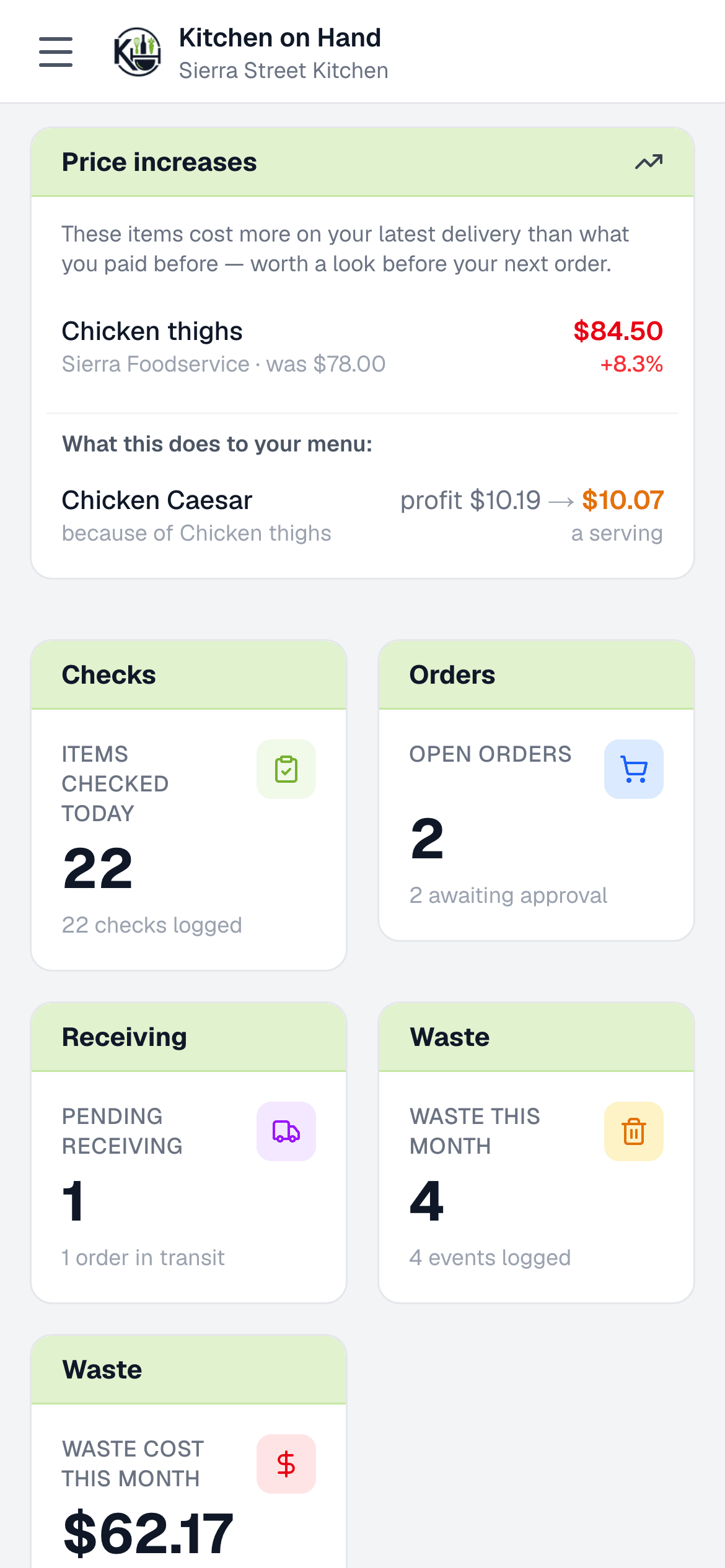
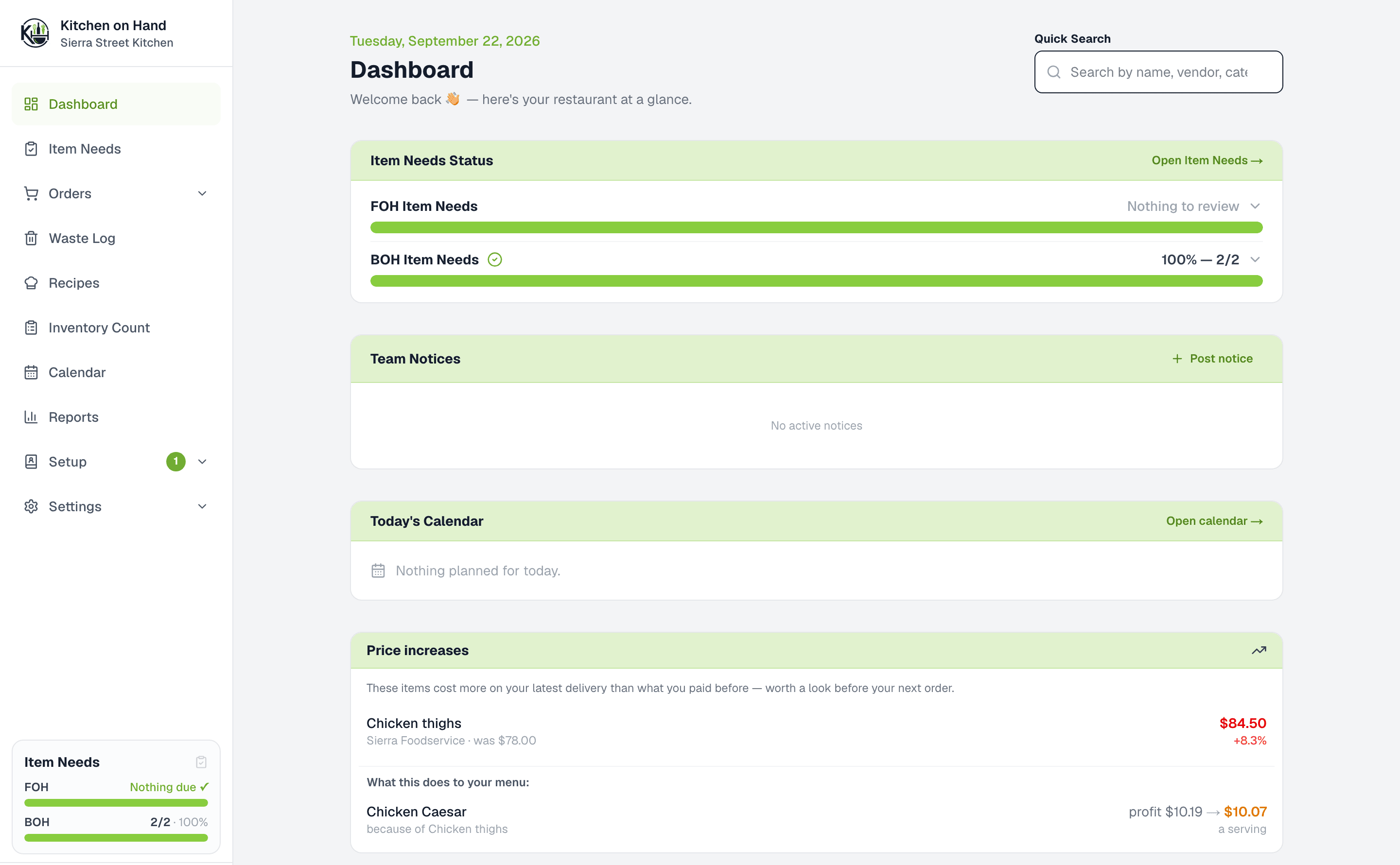
Real screen from the app, using an example kitchen with sample numbers.
How it works
Three steps. Nothing to install.
Photograph your last invoice
Or upload a PDF, paste a list from your vendor’s website, or bring a spreadsheet. Items, units and prices are read in for you (photos, PDFs and pasted lists are read by AI), and you check the list before anything is saved.
Walk the kitchen once a day
Anyone on the crew can do it: open the app, walk the stations, tap Good or Order on each item. It fits into the walk you already do before service.
Order, receive, see the numbers
Purchase orders build themselves by vendor. Deliveries check in from the dock. Waste, counts and recipes turn into food-cost numbers you can act on.
Without a spreadsheet
The same Tuesday, two ways.
Four moments in an ordinary day, with and without the app.
Clipboard and spreadsheet
A cook notices the shrimp is low and tells whoever is nearby.
Kitchen on Hand
The cook taps Order on the walkthrough; the shrimp lands on the purchase order under that vendor.
Clipboard and spreadsheet
Someone types the order guide into a text to the rep from memory.
Kitchen on Hand
The purchase order saves with a suggested quantity from what you ordered last time.
Clipboard and spreadsheet
The invoice goes in a drawer; the price change goes unnoticed until the P&L.
Kitchen on Hand
The dock check-in records the price you paid; the dashboard flags it if it went up.
Clipboard and spreadsheet
Waste goes in the bin, not on paper.
Kitchen on Hand
Waste is logged in a few taps and priced at the item’s last recorded cost.
Why us
Built in a working restaurant, for the way a kitchen actually runs.
Kitchen on Hand started because the tools we could find were either a spreadsheet nobody kept up or a system built for a corporate office, not a line cook. We built this one inside Sip of Saigon in Reno, with the cooks who would use it a few feet away.
Example kitchen with sample numbers, not Sip of Saigon’s.
“I was tired of finding out we were out of something during a Friday rush. Now my cooks walk the kitchen with their phones and I know what to order before I’ve had coffee.”
“Every inventory app we tried was built for an office. If a tool takes longer than the clipboard it replaced, the line stops using it in a week. So I built this one on Bryan’s line and cut anything his cooks wouldn’t touch during service.”
- Made for the phone in a cook’s pocket
- Big buttons, one screen per job, no training day. If the line can’t use it during service, it doesn’t get used.
- Works where the food is
- The walk-in has no signal. Open the walkthrough or a count before you go in: it saves on the phone and sends when you’re back in signal.
- Every number traces back to a real price
- Waste, counts, food cost and recipe margins are worked out from the prices on your items, updated every time you record one at the dock, so you can always see where a number came from.
- Each person sees only their job
- Roles decide who can order, receive, see prices or run reports. A new cook gets a login and a walkthrough, nothing else.
Pricing
One plan. Everything included. Less per location as you grow.
Try it free for 30 days with no card. If you keep going, it’s one price per location, paid monthly, or yearly for 25% less. If you don’t, nothing is charged and your data stays put.
Is it for you?
A good fit if
- You run one or a few independent restaurants and order from your vendors yourself.
- You want the crew, not the office, doing the daily walkthrough.
- You want food cost built from the prices you actually paid.
Not yet
- Ordering inside a vendor’s own system. Orders go out by email, text, copy or print.
- Connecting a POS. You type sales when you finish a count.
- Exports beyond CSV.
1 location
$40
per month
or $360 a year save 25%
2 locations
$35
each per month
or $315 each a year save 25%
3+ locations
$30
each per month
or $270 each a year save 25%
Slide to see what it costs.
$40/ month
or $360 a year (3 months free)
1 location × $40. Add a second location and both drop to $35 each.
More than ten locations? Email us.
Every location gets everything:
- Your whole team, with roles — no per-user fees
- Daily walkthrough, ordering, receiving and waste
- Send orders to vendors by email, text or print
- Inventory counts, food cost and recipe margins
- Calendar, task reminders and food-safety logs
- Emergency alerts by app notification and email
- Monday summary email of last week’s spend and waste
- Import from photos, PDFs, pasted lists or spreadsheets; CSV export
- Works in the browser on any phone, tablet or computer
Have a code from us? Enter it in Settings → Plan & Billing after you sign up.
Prices in US dollars, per location, before any applicable tax. A paid plan renews automatically each month or each year, at the rate shown for your number of locations, until you cancel. Cancel any time in Settings → Plan & Billing; you keep access until the end of the month or year you’ve paid for, and your data stays available to export. Full details in the Terms of Service.
Questions
Things owners ask us
What is Kitchen on Hand?
Kitchen on Hand is restaurant inventory and ordering software. Your crew does a quick daily walkthrough on their phones, marking each item Good or Order, and the app turns that into purchase orders grouped by vendor. It also checks deliveries in, logs waste in dollars, runs inventory counts with a food-cost percentage, and costs out your recipes. It runs in any web browser, and it was built inside Sip of Saigon, a working restaurant in Reno, Nevada.
Does my staff need to install anything?
No. It runs in the browser on any phone, tablet or computer. Add it to the home screen and it behaves like an app, with notifications. Nothing to download from an app store, nothing for you to manage.
Does it work in the walk-in with no signal?
Yes, once the screen is open. Open the daily walkthrough or an inventory count before you head in: taps save on the phone and send when you’re back in signal with the app open. Loading a page, and every other screen, needs a connection.
Do I need a POS system or to connect one?
No. Kitchen on Hand works on its own. If you want a food-cost percentage, you type your sales for the period when you finish an inventory count — that is the only number it asks you for.
What does setup involve?
Photograph your last invoice or order guide, upload a PDF of it, paste a list from your vendor’s website, or bring a spreadsheet (Excel or CSV). Items, units and prices are read in for you to check (photos, PDFs and pasted lists are read by AI, so look the list over before saving). Then set a minimum on the items you want watched (on the item, or in the spreadsheet you import). After that, setup is done — start walking the kitchen.
What happens when the 30 days are up?
If you haven’t added a card, nothing is charged: your restaurant becomes read-only — everyone can still sign in, view and export, but nothing can be added or changed until you subscribe. Nothing is deleted for not paying. If you added a card during the trial, the plan you picked starts when the trial ends and renews automatically until you cancel.
Can I run more than one location?
Yes. Each location has its own inventory, orders and team. You switch between them in the app, and a new location can start from a copy of an existing one’s vendors, items, recipes and roles. Pricing drops per location as you add them.
Is there a yearly plan?
Yes. Pay yearly and save 25%: $360 a year for one location, $315 each for two, $270 each for three or more. It renews once a year, and we email you a reminder a month before it does.
What can my cooks see?
Only what their role allows. A cook can walk the kitchen and receive deliveries without ever seeing your prices or reports. You decide, per role, who can order, receive, log waste, see costs or edit the catalog.
Does it send the order to my vendor?
Yes. It builds the purchase order for you, by vendor, with quantities, and Send to vendor sends it the way that vendor takes orders: emailed straight to their order address, texted from your own phone, copied in a format you can paste into their website or app, or printed. Emailed and texted orders include a link the vendor can open with no account to confirm the order, mark items short or out, suggest a swap or flag a price change. Nothing on your order changes until you accept it. The app then tracks the delivery and records the prices when it arrives.
What happens if I cancel?
You keep access until the end of the month or year you’ve paid for, and your data stays yours — export your items, vendors, recipes, purchase history and waste log to spreadsheets from Settings at any time. We don’t delete a restaurant for non-payment; it goes read-only until you subscribe again. (A restaurant nobody has signed into for 18 months, with no plan, may be removed after 60 days’ emailed notice.)
Free for any kitchen, no sign-up:
Walk your kitchen with it tomorrow morning.
Sign up, photograph an invoice, check the items it read, and walk the line with it. Free for 30 days, no card to start.
Or email support@kitchenonhand.com — a founder answers.